Platform Implementation Docs
Custom Platform Implementation Guide
Introduction
This step-by-step guide covers everything you need to implement Shopbox on a custom platform.
Implementation and Staging
Generally it's best to get going with the Shopbox tracking script on production as soon as possible as this is the data we use to train the AI. We also prefer to do the training on the live data but can use staging data if needed but will be swapped out for the live data at some point as we don't keep track of both sets of data. This means that the shopbox product cards on the staging site will redirect to the live site. However, this is expected behaviour and does not cause issues for the functionality.
Cookie Policies
Shopbox stores basic information locally on devices. This information is cleared when the browser history is cleared. We do not track users across other sites, only on your domain.
You can add this to your cookie policy if needed:
“We use local storage to enhance your shopping experience by remembering products your device has viewed, allowing us to show better recommendations. This data is not linked to external information and is used solely within our store.”
Implementation breakdown
Step 1: Add Shopbox Tracking Components
Part 1 - Page detection
Add a class name to the BODY TAG for each of the following page types:
Homepage Example:
<body class="sb-homepage">...</body>
The Checkout Success is intended to be a hidden div element within the body of the page. The ID it contains should corrolate with the Order ID from the Magento API.
Part 2 - Tracking script
Insert our tracking script into the header of your site (both staging and production).
Your onboarding manager will have provided the required sbid (Shopbox ID).
Tracking Script Example:
<script>
    document.addEventListener('DOMContentLoaded', () => {
      var sbid = 'CUSTOMER_ID_GOES_HERE';
      var t = document.createElement("shopbox-app-v2"),
          s = document.createElement("script");
      t.setAttribute('cid', sbid);
      s.type = "text/javascript";
      s.async = true;
      s.src = "https://widget.shopbox.ai/js/app.js";
      document.body.appendChild(t);
      document.head.appendChild(s);
    });
</script>
Testing Part 2:
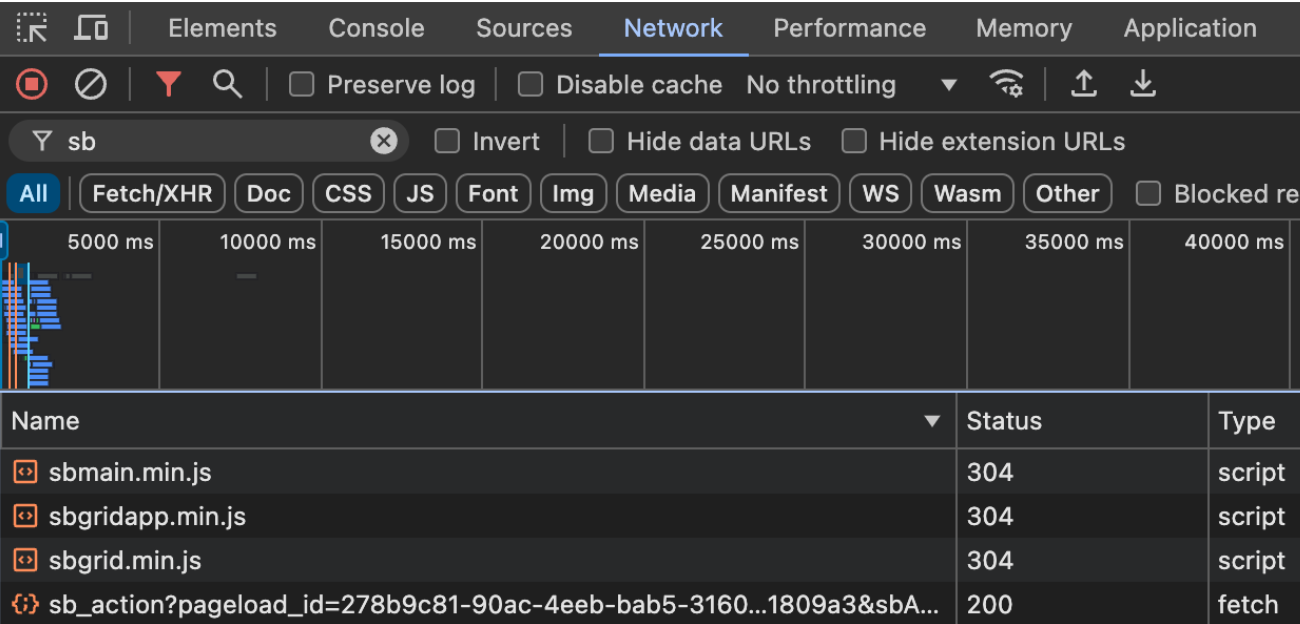
If you inspect any page on your domain and check under the Network Tab you should be able to see the scripts indicated in the below screenshot. Please let us know if you have any failure status codes as there could be a reason our server is unable to contact your own domain.
Step 2: Send Your Product and Order Data
Your data is sent to Shopbox using our Feed API. Products are pushed one record at a time so your catalogue stays in sync as items are created, changed or removed, while orders are uploaded as a batch file once daily.
All requests are made against the following base URL:
https://feeds.shopbox.ai
Every request requires an API key authorization header:
A memeber of the Shopbox team will provide the ingestion token. This is a different credential to the API token used for the recommendation endpoints in Step 4.
Part 1 - Insert / Update a product
POST /v1/ingest/product
This endpoint will insert a new product if it is not found in our datastores, or update an existing product if an earlier version of it exists. The full product content must be sent each time — partial updates are not supported. Data validation is applied to every request.
A product will only be updated if the updated_at timestamp is the most recent one we have seen for that product. This ensures that even if products are processed out of order, the most recent version always survives.
The field reference for the payload is documented in full here:
- Product Feed - Required structure and field definitions.
Example request body:
{
    "id": "inano123456",
    "parent_product_id": "inano",
    "title": "ipod-nano",
    "description": "It's the small iPod with a big idea: Video.",
    "url": "https://www.example.com/inano123456",
    "image": "https://www.example.com/images/ipod-nano.jpg",
    "price": {
        "EUR": "199.99",
        "GBP": "166.58"
    },
    "regular_price": {
        "EUR": "250.00",
        "GBP": "208.26"
    },
    "stock": 50,
    "brand": "Apple",
    "top_category": "Consumer Electronics",
    "category_list": [
        "MP3 Player",
        "Music",
        "Flash Memory"
    ],
    "created_at": "2007-12-31T19:00:00-05:00",
    "updated_at": "2007-12-31T19:00:00-05:00",
    "cart_id": "cart_123456",
    "custom_metadata": {
        "color": [
            "red",
            "blue"
        ],
        "generation": [
            "6th"
        ]
    },
    "custom_numerical": {
        "width_mm": 38.7,
        "weight_g": 36.8
    }
}
Example request:
curl -X POST "https://feeds.shopbox.ai/v1/ingest/product" \
  -H "SB-INGESTION-TOKEN: YOUR_INGESTION_TOKEN" \
  -H "content-type: application/json" \
  -d @product.json
Please add any data that may be relevant for recommendations into the custom_metadata field — this accepts nested JSON objects.
To load your whole catalogue at once — for your first ingestion, or to resynchronise after failed updates — use the batch upload described in Part 3 instead.
Part 2 - Delete a product
DELETE /v1/ingest/product
The delete endpoint will remove a product, and it will no longer appear in recommendations. Only the id and updated_at fields are required in the request body.
Example request body:
{"id": "inano123456", "updated_at": "2008-12-11T19:00:00-05:00"}
As with updates, a product will only be deleted if the updated_at timestamp is the most recent one we hold for that product.
Part 3 - Upload a feed as a batch
Whole feeds can be delivered as a single file rather than as individual records. Uploading is a two stage process: you request a temporary upload URL from Shopbox, then send your file directly to that URL.
Both feed types use the same process:
The product batch upload is useful for your initial ingestion, and for resynchronising your catalogue if individual update requests have been lost or your network has gone down. For day to day changes, continue to use the single product endpoint in Part 1.
The field references for the file contents are documented in full here:
- Product Feed - Required structure and field definitions.
- Order Feed - Required structure and field definitions.
Stage 1 — Generate the upload URL
GET /v1/ingest/{order|product}-batch/generate-url
This request requires your SB-INGESTION-TOKEN header. The response contains the URL to upload to:
{"status": "success", "url": "<UPLOAD_URL>"}
If you are testing this in Postman, make sure to view the response as JSON rather than Raw so that the character encoding of the URL is correct.
Stage 2 — Upload the file
Send a PUT request containing your feed to the URL returned in Stage 1. The upload URL is already authorised, so do not send your SB-INGESTION-TOKEN with this request.
curl -X PUT "<UPLOAD_URL>" \
  -H "Content-Type: application/json" \
  --data-binary @feed.json
Full example script:
#!/bin/bash
# Requirements: jq, curl
# Usage: ./shopbox_upload.sh <feed_type> <filename> <SB-INGESTION-TOKEN>
# Example: ./shopbox_upload.sh order feed.json eyJhbGciOi...
# Example: ./shopbox_upload.sh product feed.json eyJhbGciOi...

FEED_TYPE=$1
FNAME=$2
SB_INGESTION_TOKEN=$3
BASE_URL="https://feeds.shopbox.ai"

echo "Fetching $FEED_TYPE batch upload URL..."
RESPONSE=$(curl -s -X GET "$BASE_URL/v1/ingest/$FEED_TYPE-batch/generate-url" \
     -H "SB-INGESTION-TOKEN: $SB_INGESTION_TOKEN")

# RESPONSE format: {"status": "success", "url": "<UPLOAD_URL>"}
echo "Extracting upload URL..."
UPLOAD_URL=$(echo $RESPONSE | jq -r .url)

echo "Uploading $FNAME to $UPLOAD_URL"
curl -X PUT "$UPLOAD_URL" \
     -H "Content-Type: application/json" \
     --data-binary @$FNAME
We suggest sending your order feed daily, just after midnight regardless of your time zone.
Once your integration is sending products and orders, inform your Shopbox contact. They will check the data and ensure it meets the specs required before the model is built.
Step 3: Align with your Shopbox onboarding manager
At this point, please be sure to align with your onboarding manager that steps 1 and 2 have been completed successfully. If everything is in order we will be able to build the AI model which should mature in over the period of a week before you continue to Step 4.
Step 4: Building Shopbox Components
Your onboarding manager will let you know once the modelling has been completed on our end. - It typically takes a week after steps 1 and 2 have been completed. Until then, our endpoints will return blank results.
Also, note that you will require an API Token to use our API endpoints. Please reach out to your onboarding manager if you are not able to generate your API key from our hub.
Part 1 - PDP Components
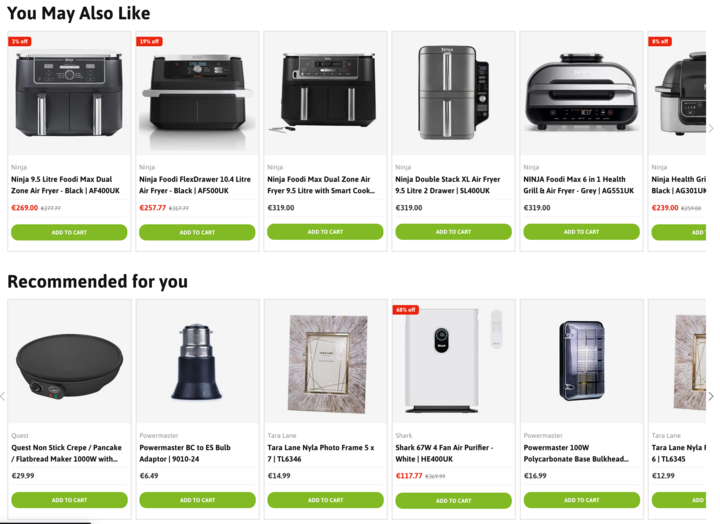
For the PDP we generally use the following endpoints. We generally recommend that the grids are added higher up on the page instead of too far down.
- Find similar - Title: You May also Like
- Recommendations - Title: Recommended for you
Here is an example of what could be expected:
Here is an example of how to build a Find Similar component powered by our API.
Please be sure to use the full product URLs from the Shopbox API response. The urls we return from the API contain additional parameters we use to track clicks on products we have recommended through the API. Please DO NOT STRIP THESE PARAMETERS. If so we will not be able to provide any information on attributes sales through the API.
Additionally if you use an add to cart option on your product cards, we ask you to review our analytics doc so we can keep track of products via the quick add.
Part 2 - Homepage Components
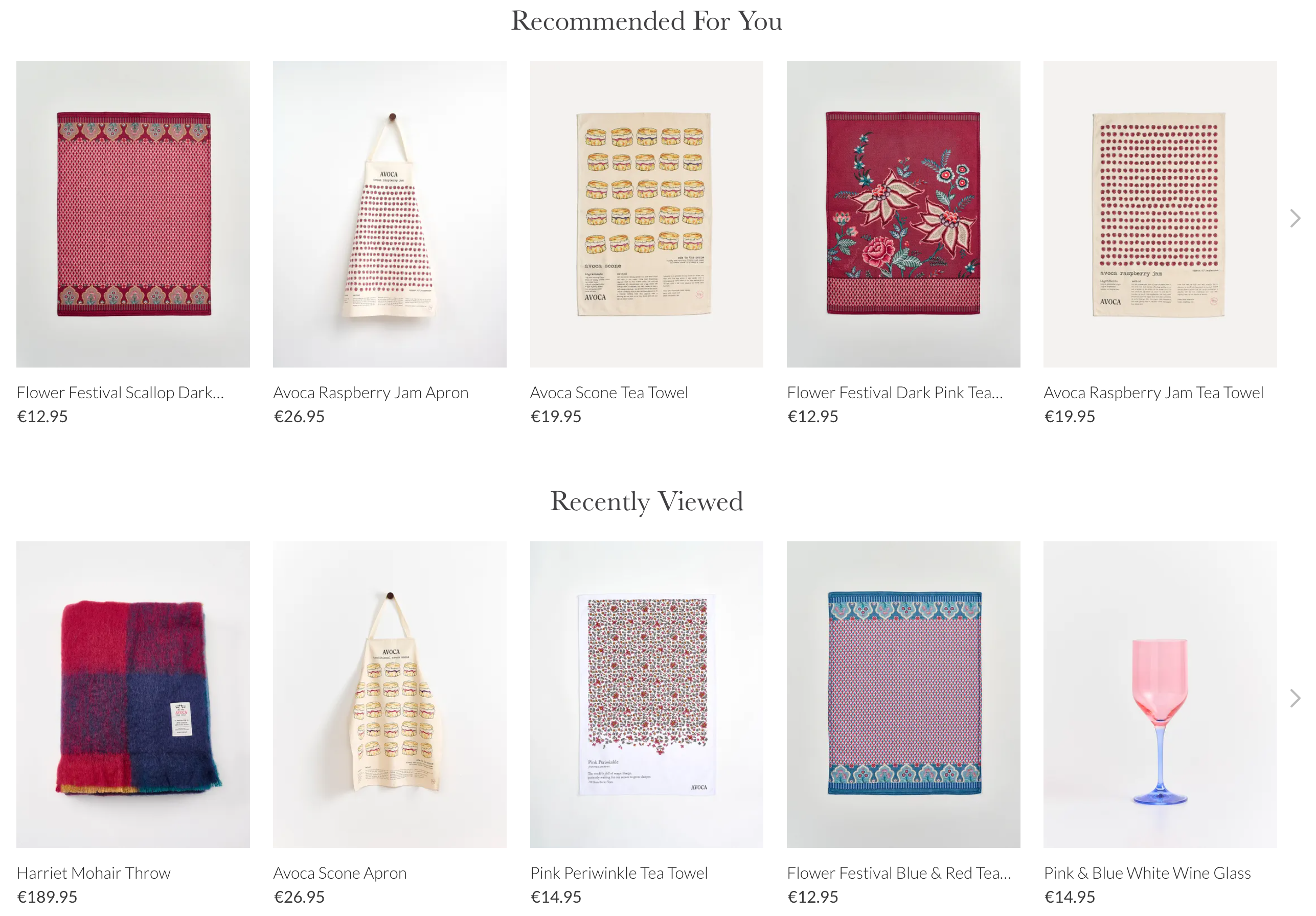
For the Homepage we generally use the following endpoints. We generally recommend that this should appear right below the hero banner at the top of the homepage.
- Recommendations - Title: Recommended for you
- Recently Viewed - Title: You Recently Viewed
Here is an example of what could be expected:
Step 5: Requesting Support (Post implementation)
If you ever require any assistance with Shopbox please email our support team at [email protected].